

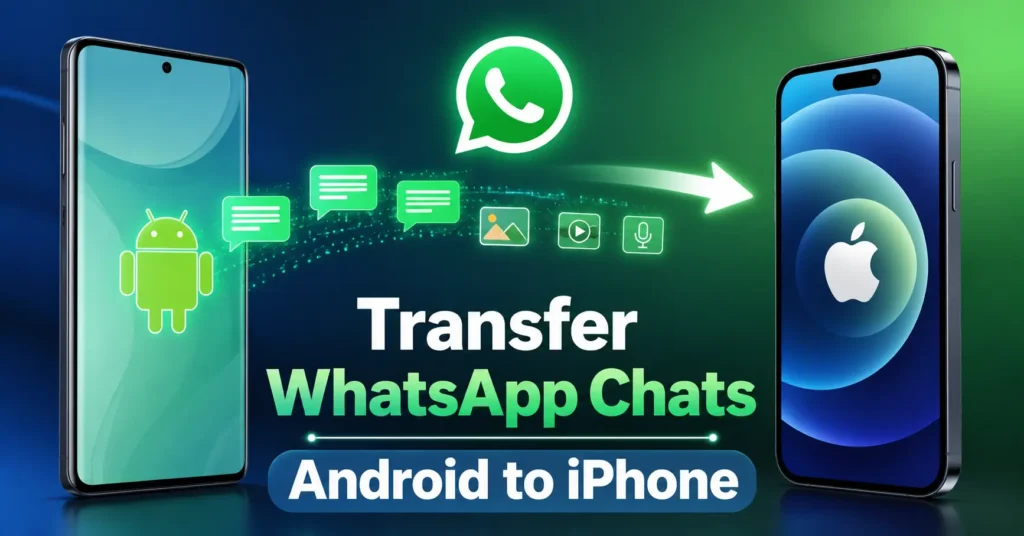
Switching from Android to iPhone no longer means leaving years of WhatsApp conversations behind. WhatsApp officially supports moving chat history and other supported data from a compatible Android phone to an iPhone using Apple’s Move to iOS app.The official method lets you transfer WhatsApp chats from Android to iPhone without a computer or paid third-party migration software.
You can move your account information, profile photo, personal and group chats, communities, Channel updates, chat history, supported media, and settings.However, the process has strict requirements. Your iPhone must be new or factory reset, you must use the same phone number, and WhatsApp should not already be activated on the new device.
Here is how to transfer WhatsApp chats from Android to iPhone safely using the official method.
What Do You Need Before Transferring WhatsApp Chats ?
Before starting the WhatsApp migration from Android to iOS, make sure both smartphones meet the official requirements.
You need:
- Android 5 or later installed on the Android device.
- iOS 15.5 or later installed on the iPhone.
- Apple’s Move to iOS app installed on the Android phone.
- The latest available WhatsApp version installed on both devices.
- The same phone number on your old Android phone and new iPhone.
- A factory-new or factory-reset iPhone.
- Both smartphones connected to power.
- Both devices connected to the same Wi-Fi network, or the Android phone connected to the iPhone’s hotspot.
The iPhone should also have enough available storage for the transferred WhatsApp chat history and media. One more important limitation: WhatsApp currently does not support transferring chats from the WhatsApp Business app on Android to iPhone using this method.
Also read :Redmi Turbo 5 Review: Big Battery and Serious Gaming Power, but Should You Pay ₹37,999 ?
How to Transfer WhatsApp Chats From Android to iPhone Step by Step
The best way to transfer WhatsApp chats from Android to iPhone is to follow WhatsApp’s official Move to iOS migration process.
Step 1: Open Move to iOS on Your Android Phone
Install and open the Move to iOS app on your Android device.
Follow the instructions displayed on the screen.
During the iPhone setup process, a code will appear on your iPhone. Enter this code on the Android phone when prompted.
Tap Continue and follow the remaining instructions.
Step 2: Select WhatsApp
When the Transfer Data screen appears, select WhatsApp.
Tap Start on the Android phone.
WhatsApp will begin preparing your chat history and other supported data for export.
Wait until the preparation process finishes. WhatsApp will sign you out of the Android phone once the data is ready.
Step 3: Return to Move to iOS
Tap Next to return to the Move to iOS app.
Then tap Continue to begin transferring data from the Android phone to the iPhone.
Keep both devices connected to power and wait until Move to iOS confirms that the transfer is complete.
Do not manually open Files and select the WhatsApp folder inside Move to iOS. WhatsApp states that this method is not supported during migration.
Step 4: Install WhatsApp on the iPhone
Complete the remaining iPhone setup process.
Install the latest version of WhatsApp from Apple’s App Store.
Open WhatsApp and sign in using the same phone number that you used on the Android device.
Step 5: Import Your WhatsApp Chat History
Tap Start when WhatsApp asks you to import the transferred data.
Allow the process to finish.
Complete the activation of WhatsApp on the new iPhone.
Your supported chats and transferred data should now appear inside WhatsApp.
More Read

What WhatsApp Data Can You Transfer ?
The official WhatsApp chat history transfer method supports several types of data.
You can transfer:
- WhatsApp account information.
- Profile photo.
- Individual chats.
- Group chats.
- Communities.
- Channel updates.
- Chat history.
- Supported photos, videos, and other media.
- WhatsApp settings.
However, some information does not move to the new iPhone.You cannot transfer your WhatsApp call history, display name, peer-to-peer payment messages, or media received through WhatsApp Channels.WhatsApp Business chat migration from Android to iPhone is also not currently supported through this method.
Also read : Samsung Galaxy S27 Pro Leaks: The “Ultra” Killer Samsung Hid From Us.
Does WhatsApp Upload Your Data to the Cloud During Transfer ?
No. The migrated WhatsApp data does not automatically go to cloud storage as a result of the transfer process. WhatsApp also states that it cannot see the data being transferred. After successfully moving your chat history to the new iPhone, you can create an iCloud backup from WhatsApp if you want your transferred chats and media stored in the cloud.
What Happens to WhatsApp Data on the Old Android Phone ?
The migration process does not automatically delete WhatsApp data from the Android phone. Your old device will continue to contain the transferred data unless you delete WhatsApp or wipe the phone. This is particularly important if you plan to sell, exchange, recycle, or give away your old Android device. After confirming that your chats and media have successfully moved to the iPhone, securely erase the old phone before handing it to someone else.
Can You Transfer WhatsApp Chats After Setting Up the iPhone?
The official method has an important limitation. You can only restore the transferred WhatsApp history before activating WhatsApp on the new iPhone. If WhatsApp is already active on your new device and you want to recover your old Android chat history, you must wipe the iPhone and start the migration process again.
WhatsApp does not support merging newly created chat history on the iPhone with the old history transferred from Android.This makes it important to complete the WhatsApp Android to iPhone transfer before you start regularly using WhatsApp on the new device.
Also read : Motorola Edge 70 Pro+ India Launch on June 4: 50x Zoom Feature Will Surprise You
Can You Transfer WhatsApp to an iPhone With a Different Phone Number ?
No.WhatsApp does not support transferring your existing data directly to a different phone number during migration.You must use the same phone number on the new iPhone that you used on the old Android phone.If you want to use a different number, WhatsApp recommends changing your phone number on the old device before transferring the data to your new iPhone.
Can You Transfer WhatsApp Chats Without a Computer ?
Yes.
The official Move to iOS WhatsApp transfer method does not require a PC or Mac.You also do not need third-party migration software.In fact, WhatsApp specifically recommends using the Move to iOS app and warns that unsupported migration apps can cause problems during the transfer process.
Learning how to transfer WhatsApp chats from Android to iPhone is straightforward when you follow the official migration process.Install Move to iOS on the Android phone, use a new or factory-reset iPhone, connect both devices to power and a stable network, select WhatsApp during the transfer, and activate WhatsApp using the same phone number.
Remember that WhatsApp Business chats, call history, display name, peer-to-peer payment messages, and media received over Channels cannot currently be transferred.Your migrated data also does not automatically become an iCloud backup, so create a new WhatsApp backup after completing the transfer.
Most importantly, complete the migration before activating and regularly using WhatsApp on your new iPhone. WhatsApp does not allow old Android chat history and new iPhone chat history to be merged later.Following these steps gives you the safest official way to move WhatsApp messages, media, and supported account data from Android to iPhone without relying on a computer or third-party transfer tools.
Also read : Motorola Edge 70 Max India Launch Date Announced: Flagship Phone Arriving on July 15.
Frequently Asked Questions
Can I transfer WhatsApp chats from Android to iPhone without losing data ?
Yes. The official Move to iOS migration process transfers supported WhatsApp chat history, media, settings, and account information.
Can I transfer WhatsApp Business chats from Android to iPhone ?
No. WhatsApp currently states that Android-to-iPhone chat migration is not supported for the WhatsApp Business app.
Can I transfer WhatsApp chats after activating WhatsApp on my iPhone ?
No. You must wipe the iPhone and repeat the migration process. WhatsApp does not support merging old Android chats with new chat history created on the iPhone.
Will my WhatsApp photos and videos transfer to the iPhone ?
Supported WhatsApp media can transfer. However, media received through WhatsApp Channels cannot be transferred.
Does WhatsApp delete data from my Android phone after transfer ?
No. Your WhatsApp data remains on the Android phone unless you delete WhatsApp or wipe the device.
Do I need a computer to transfer WhatsApp chats ?
No. The official process uses Apple’s Move to iOS app and does not require a PC or Mac.